Showing posts with label Search. Show all posts

Monday, October 26, 2015

Search schema: RefinableString +100

I've noticed lately that in the Search schema of my SharePoint Online tenant the number of available managed properties of RefinableString has increased with 100. The total number is now 200. That's good news since making custom columns available in the refinement panel is an every day business.


Sunday, May 12, 2013

Select multiple FileType refiners by drag & drop in SharePoint 2013 Search Center

With the help of HTML5, CSS and Javascript I customized the search UI to make it possible to select multiple FileType refiners by drag & drop the icon I've placed in front of the Result types into a special refiner box.

Here's a sneak preview of the concept:


Friday, August 24, 2012

Cool Query builder for Search Results Sources in SharePoint 2013 Preview

Results Sources are the new concept for scopes and federated search in SharePoint 2013 Preview.

There's a cool Query builder to build your own query. Queries can contain context driven parameters like current user, today, etc.

Wednesday, August 15, 2012

Refinement web part: show associated icons in front of the Result type refiner filters

Part 2 of Customizing the Search results UI in SharePoint 2013 Preview

Download the custom 'Filter_Default_ICO.html' file and save it to the '/_catalogs/masterpage/Display Templates/Filters/' folder of your search site collection. Select the Display template 'Refinement Item with icon' for the Result type (FileType) refiner in the Refinement web part. And there you have the icons!


This is done in the following way:

The display template file contains the mapping of the result type. Just by adding the value "RefinerIcon" to the map array, the image file name can be listed for every result type. For example: "RefinerIcon": "iczip.gif" (marked in yellow)


The object 'mappedFilter' gets a property called 'RefinerIcon'. The value of this property is combined with the path of the image folder to show the right icon.


This is done for every Result type (FileType) filter except for the 'Show all' tag.

Notice: In SharePoint 2013 RTM the Resource reference for the 'Show all' tag has changed to: Srch.U.loadResource("rf_All")

Monday, August 13, 2012

Refinement web part: show associated icons in front of the File Extension refiner filters

Part 1 of Customizing the Search results UI in SharePoint 2013 Preview

Open the Search results page in Edit mode and get to edit the Refinement web part:


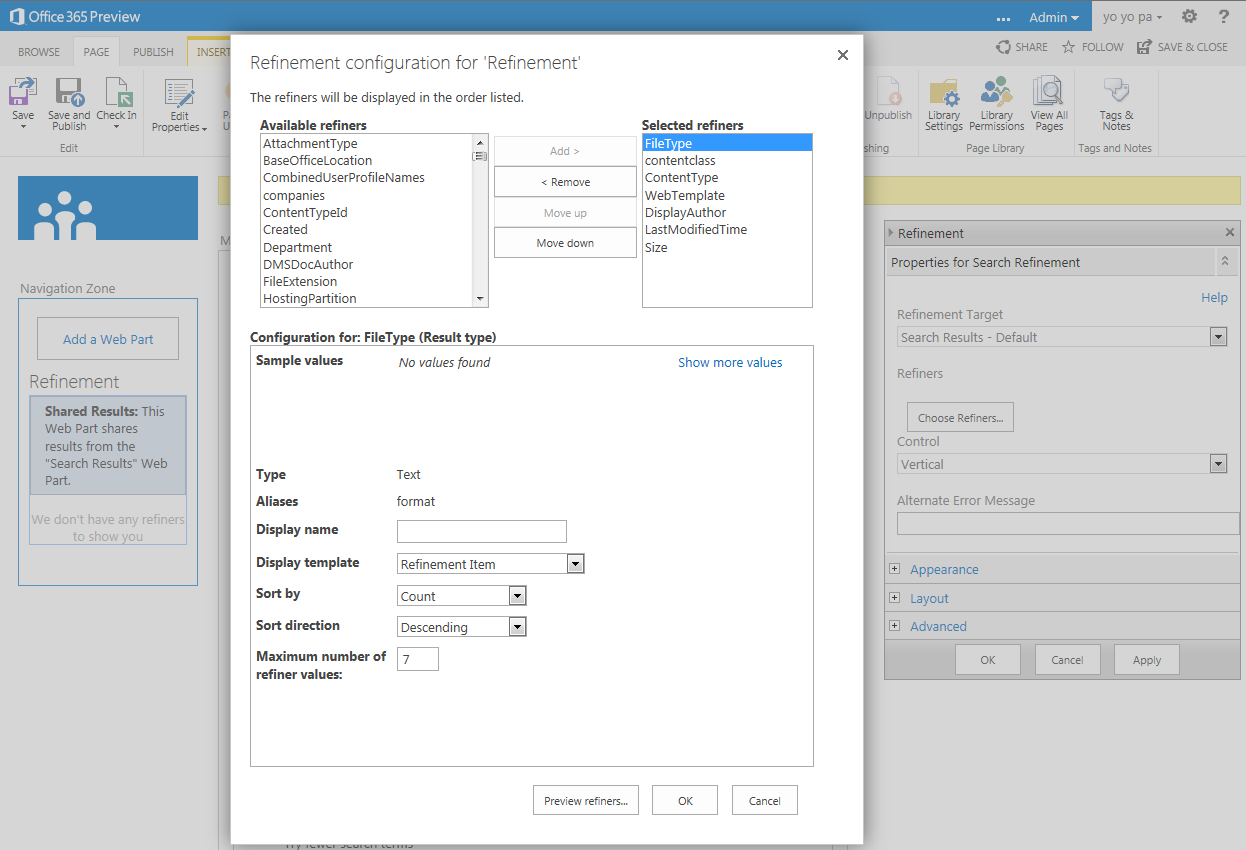
Click the button 'Choose Refiners...' to add FileExtension to the Selected refiners:


Open the Design Manager via Settings:


And look for the display template title 'Refinement Item':


These display templates come in pairs: one html file and one js file, both sharing the same title and name. You can/should only add or modify the html files; the js files are generated by SharePoint. The status of this process is shown in the column 'Status'. See screenshot for example: "Conversion successful".
Open the Filter_Default.html file in Sharepoint Designer 2013 (or make a copy):
'/_catalogs/masterpage/Display%20Templates/Filters/Filter_Default.html'

Add after row 259 the following code (marked in yellow):


This code will look for an icon file name in the image folder: '/_layouts/15/images/ic[ext].png'

Save the display template file. If you've made a copy of the original, be sure to change the title node in row 3 before saving. Go back to the Refinement web part and choose the modified display template for the FileExtension refiner.

Based on the displayed results, not all of the expected icon files are yet available, but with the help of the onError event in the IMG element there is an alternative icon found. You could add the missing icon files yourself on your own server(s), or use an image library in case of SharePoint Online.


There seems to be a native function to get the icon url: Srch.U.getIconUrlByFileExtension(). I will give it a try. Here are my findings.

To be continued.

Part 2 of Customizing the Search results UI in SharePoint 2013 Preview:
Refinement web part: show associated icons in front of the Result type refiner filters

Sources:

Saturday, August 11, 2012

Customizing the Search results UI in SharePoint 2013 Preview - Introduction

Quote Steve Peschka (MS): "SharePoint 2013 has a number of outstanding features that allow you to really use and customize search results like never before." ...
"In SharePoint 2013 – queue the music – we have display templates and what an improvement they are. No longer do you need to carry your XSLT Zen about you, now you can create your custom display code as straight HTML – yahoo!"

So let's try to find out how we are able to customize the search results user interface in the following web parts:
  1. Refinement web part: show associated icons in front of the File extension refiner filters (part 1);
  2. Refinement web part: show associated icons in front of the Result type refiner filters (part 2);
  3. Search Results web part: add tumbnail view to the Display Template of the Result Type for images (part 3);
  4. Hover Panel: add extra action to open the edit form of the item (part 4).

Preview of the customized Refinement panel:

Part 1 will explain in detail how this can be done.

Saturday, July 28, 2012

Refiners in SharePoint 2013 Preview

Here is a preview of the Refinement panel in SharePoint 2013. Custom refiners can be added through the user interface:


Display of the refiners in the search results page:


This impression is based on an Office 365 Developer Site.

Tuesday, June 5, 2012

Search Refinement Panel is not so MUI after all

"Out of the box SharePoint 2010 offers a search refinement panel that works great as long as you don’t use multiple languages. After some testing with search and the refinement panel I noticed that the Managed Metadata wasn’t changing when I was switching languages."
Ventigrate offers a MUI Search Refinement Panel on CodePlex.
Read more on Timmy Gilissen's blog: http://www.moss2007.be/blogs/timmy/archive/2011/12/13/mui-refinement-panel.aspx

Monday, October 17, 2011

Return to the context of the contextual search

The contextual search is integrated in the standard search center of SharePoint 2010. So we have one search experience, that can be modified.
The scope of the contextual search is added to the search query url by the parameters cs (contextual scope: This Site/This List) and u (url of the site/list).


The masterpage of the search center doesn't provide any navigation. And other portals are not part of the navigation within the Home site. But it would be nice to be able to go back to where we started the search, no matter where we came from. This can be done with some simple Html and javascript.
Add a HTML Form Web Part to the left zone of the search results page and paste the following code into the source editor:


<br/>&#160;&#160;&#160;<a href="/"><img class="ms-rtePosition-4" alt="Go Home" src="/_layouts/images/hhome.png" border="0"/></a>&#160;<font color="#0072bc"><a href="/">Go Home</a>&#160; </font><a href="#" onClick="javascript:window.location.replace(GetUrlKeyValue('u'));"><img class="ms-rtePosition-4" alt="Go Back" src="/_layouts/images/back.gif" border="0"/></a>&#160;<a href="#" onClick="javascript:window.location.replace(GetUrlKeyValue('u'));">Go Back</a><br/><br/>

This results in two options: go home, or go back to the context.
When there is no context, you will return to the default page of the search center.


Saturday, August 20, 2011

Add Hyperlink to the Image Rotator of PathToSharePoint to search for the picture and open it's dispform

Christophe from PathToSharePoint offers the possibility to generate your own script for an image rotator. You can copy the script and add it to a CEWP on your page.
This is a great service.
But there is only the possibility to add a hyperlink that will download the picture directly, or will open a link that is specified in an extra text column that you should fill out by hand. Instead I want the dispform to be opened with the properties of the picture.

The script uses "/_vti_bin/owssvr.dll?Cmd=Display&XMLDATA=TRUE&List={GUID}" to query the picture library and get a XML output in return. And here is where the restrictions come in: this data doesn't contain the ID of the picture, only the name. And it calls the default view of the picture library that probably will have an item limit, so not all images are rotated.
Therefore I rewrote the script a bit to get it work my way.
First add an All items view to the picture library, and name it xxx or something so users will not be motivated to select it. Get the GUID of this view and add it to the script: "/_vti_bin/owssvr.dll?Cmd=Display&XMLDATA=TRUE&List={GUID}&View={GUID}".
Second I will use the name of the picture to add it to a search query:
var LinkColumn="ows_NameOrTitle";var PictureLink="/SearchCenter/results.aspx?s=PicLib&k="+ListItems[SelectedItem].getAttribute(LinkColumn);
Add a scope to the search administration based on the web address of the picture library.
In this way I will find the picture, but still not have the possibility to open the dispform of the item.
So I will use the trick from SharePoint Search Results: Adding a link to the view properties page of a document to get the ID available in the search results and add a 'View properties' link with XSL.

Quod erat demonstrandum.

The Ugly, the Bad and the Good (Part 1)


Part 1. The Ugly

Let's bring back the icons in the Refinement Panel of the Search results, as with the Faceted Search in MOSS 2007.
Within the Refinement Panel we have the value of the filters available. By extending the XSLT with a lot of when-statements we are able to select the belonging icon from the images folder at the file system of the server.

Add via the XSL Editor the following rows to the <xsl:template name="FilterLink"> between Begin and End comment:

<xsl:if test="($Indentation = '1')">
  <span class="ms-searchref-indenticon">&#8627;&#160;</span>
</xsl:if>
<!-- Begin -->
<xsl:choose>
  <xsl:when test="contains($Value, 'Any')">
    <img align="absmiddle" src="/_layouts/images/asterisk.png" border="0" />
  </xsl:when>
  <xsl:when test="$Value = 'Word'">
    <img align="absmiddle" src="/_layouts/images/icdocx.png" border="0" />
  </xsl:when>
  <xsl:when test="$Value = 'Excel'">
    <img align="absmiddle" src="/_layouts/images/icxlsx.png" border="0" />
  </xsl:when>
  <xsl:when test="$Value = 'Webpage'">
    <img align="absmiddle" src="/_layouts/images/icaspx.gif" border="0" />
  </xsl:when>
  <xsl:when test="$Value = 'Adobe PDF'">
    <img align="absmiddle" src="/_layouts/images/icpdf.gif" border="0" />
  </xsl:when>
  <xsl:otherwise>
    <img align="absmiddle" src="/_layouts/images/bullet.gif" border="0" />
  </xsl:otherwise>
</xsl:choose>
<xsl:text> </xsl:text>
<!-- End -->
<a class="ms-searchref-filterlink" href="{$SecureUrl}" title="{$RefineByHeading}: {$UrlTooltip}">
  <xsl:value-of select="Value"/>
</a>
Of course this is quite an ugly solution due to the fact that you need to add rows for 'every' result type that you might expect.
But it's a quick win and looks very nice. And because of the otherwise-statement, every filter gets at least an icon and no red cross or so.

Here is an example of the result:


In Part 2. we will look at the possibility to use the value of the filter to compose the filename of the icon. In this way we don't need all the when-statements. As you might think, this is the Bad one.