Showing posts with label SharePoint 2013. Show all posts

Monday, October 26, 2015

Inject your custom javascript on every page with the help of a sandbox solution

The Google Analytics SharePoint 2013 / Office 365 project on CodePlex offers a sandbox solution that makes it possible to inject your custom javascript on every page.
In this way you are able to call your own CSS and javascripts for custom branding of your site.

Wednesday, October 2, 2013

Column validation formula for time value only input in a single line of text field.

Here is a Column validation formula for time value only input in a single line of text field:
=TIMEVALUE(TimeText)<>TEXT(TimeText;"hh:mm")

Monday, July 1, 2013

TIP: Tenth edition of the free DIWUG SharePoint eMagazine

DIWUG SharePoint e-Magazine #10

Download the 10th edition of the DIWUG SharePoint eMagazine now! This one has more great articles from renowned SharePoint specialists, speakers, trainers, former SharePoint product group employees and MCMs!
In this edition:
  • Custom Forms in SharePoint 2013 Workflows with Visual Studio 2012 - Andrew Connell
  • Pimp your SharePoint search results - Stefan Strube
  • SharePoint, Yammer and the social landscape - Chris Johnson
  • Protecting SharePoint 2013 with DPM 2012 - Sam Hassani
  • Strategic Thinking and SharePoint - Jaap Zwart
  • Custom Display Templates for the Content Search Web Part - Martin Hatch
  • Optimizing SQL Server 2012 for SharePoint 2013 - Brian Alderman
  • Enterprise Social Case Management, where Workflow and User Engagement meet - Marc Vanderheyden


The DIWUG SharePoint eMagazine is a free downloadable magazine with articles written by MCMs, MVPs and other authors from the SharePoint community. The target audiences are IT-pros, developers and end (power) users.

Wednesday, June 26, 2013

SP Javascript function getIconUrlByFileExtension

In XSL the function ‘ddwrt:MapToIcon’ would return the icon file name for the given extension, based on the mapping in the DOCICON.XML file. In SharePoint 2013 there is a similar function available in JavaScript:
Srch.U.getIconUrlByFileExtension(arg1, arg2)

This function needs an object as an input parameter. In JavaScript it is very easy to create a fake object. In the context of a display template for refiners, we just add a property called FileExtension to the object and give it the Refinement Name value of the File Extension refiner.

fakeObject = new Object();
fakeObject.FileExtension = filter.RefinementName;

For some reason not all of the standard File Extensions are recognized by this function and return the standard icon file html16.png. Therefore we are going to use the second -optional- input parameter of the JavaScript function to define what it should be in case of "if no mapping is found". We can construct the path of the standard icon files in the images folder of the server file system, or use a library in the search center site collection itself to store the custom icon files. In this case we will use the images folder.

var urlIcon = Srch.U.getIconUrlByFileExtension(fakeObject, "/_layouts/15/images/ic" + filter.RefinementName + ".gif");

To show the icon inline with the refiner value we just add an image element to the Html part of the display template.

<img class="ms-srch-item-icon ms-positionRelative" src="_#= $urlHtmlEncode(urlIcon) =#_" onError="this.src='_#= SP.Utilities.VersionUtility.getImageUrl('generaldocument.png') =#_';" />

We are able to use the ‘onError’ event of the IMG element as a safety net in case the path of an icon file doesn’t exists. We will use another JavaScript function from SharePoint to retrieve the url of the image file for a general document:
SP.Utilities.VersionUtility.getImageUrl('generaldocument.png')

In this way we are able to use the function getIconUrlByFileExtension and have two alternatives in case it would not return the proper icon file.

Sunday, May 12, 2013

Select multiple FileType refiners by drag & drop in SharePoint 2013 Search Center

With the help of HTML5, CSS and Javascript I customized the search UI to make it possible to select multiple FileType refiners by drag & drop the icon I've placed in front of the Result types into a special refiner box.

Here's a sneak preview of the concept:


Friday, April 26, 2013

TIP: Ninth edition of the free DIWUG SharePoint Magazine

DIWUG SharePoint e-Magazine #9

In this edition:
  • eDiscovery in SharePoint 2013 - Sander van den Hoven
  • Cross-site content publishing with SharePoint 2013 - Waldek Mastykarz
  • An introduction to Remote Blob Storage and SharePoint - Albert Hoitingh
  • Application Lifecycle Management: an introduction for SharePoint people - Yuri Burger
  • Implementing SharePoint with Change Models and Leadership Styles - Jaap Zwart
  • Responsive Web Design - Servé Hermans
  • What’s New in Visual Studio 2012 for SharePoint 2010 - Paul Schaeflein


The DIWUG SharePoint eMagazine is a free downloadable magazine with articles written by MCMs, MVPs and other authors from the SharePoint community. The target audiences are IT-pros, developers and end (power) users.

Friday, August 24, 2012

Cool Query builder for Search Results Sources in SharePoint 2013 Preview

Results Sources are the new concept for scopes and federated search in SharePoint 2013 Preview.

There's a cool Query builder to build your own query. Queries can contain context driven parameters like current user, today, etc.

Wednesday, August 15, 2012

Refinement web part: show associated icons in front of the Result type refiner filters

Part 2 of Customizing the Search results UI in SharePoint 2013 Preview

Download the custom 'Filter_Default_ICO.html' file and save it to the '/_catalogs/masterpage/Display Templates/Filters/' folder of your search site collection. Select the Display template 'Refinement Item with icon' for the Result type (FileType) refiner in the Refinement web part. And there you have the icons!


This is done in the following way:

The display template file contains the mapping of the result type. Just by adding the value "RefinerIcon" to the map array, the image file name can be listed for every result type. For example: "RefinerIcon": "iczip.gif" (marked in yellow)


The object 'mappedFilter' gets a property called 'RefinerIcon'. The value of this property is combined with the path of the image folder to show the right icon.


This is done for every Result type (FileType) filter except for the 'Show all' tag.

Notice: In SharePoint 2013 RTM the Resource reference for the 'Show all' tag has changed to: Srch.U.loadResource("rf_All")

Monday, August 13, 2012

Refinement web part: show associated icons in front of the File Extension refiner filters

Part 1 of Customizing the Search results UI in SharePoint 2013 Preview

Open the Search results page in Edit mode and get to edit the Refinement web part:


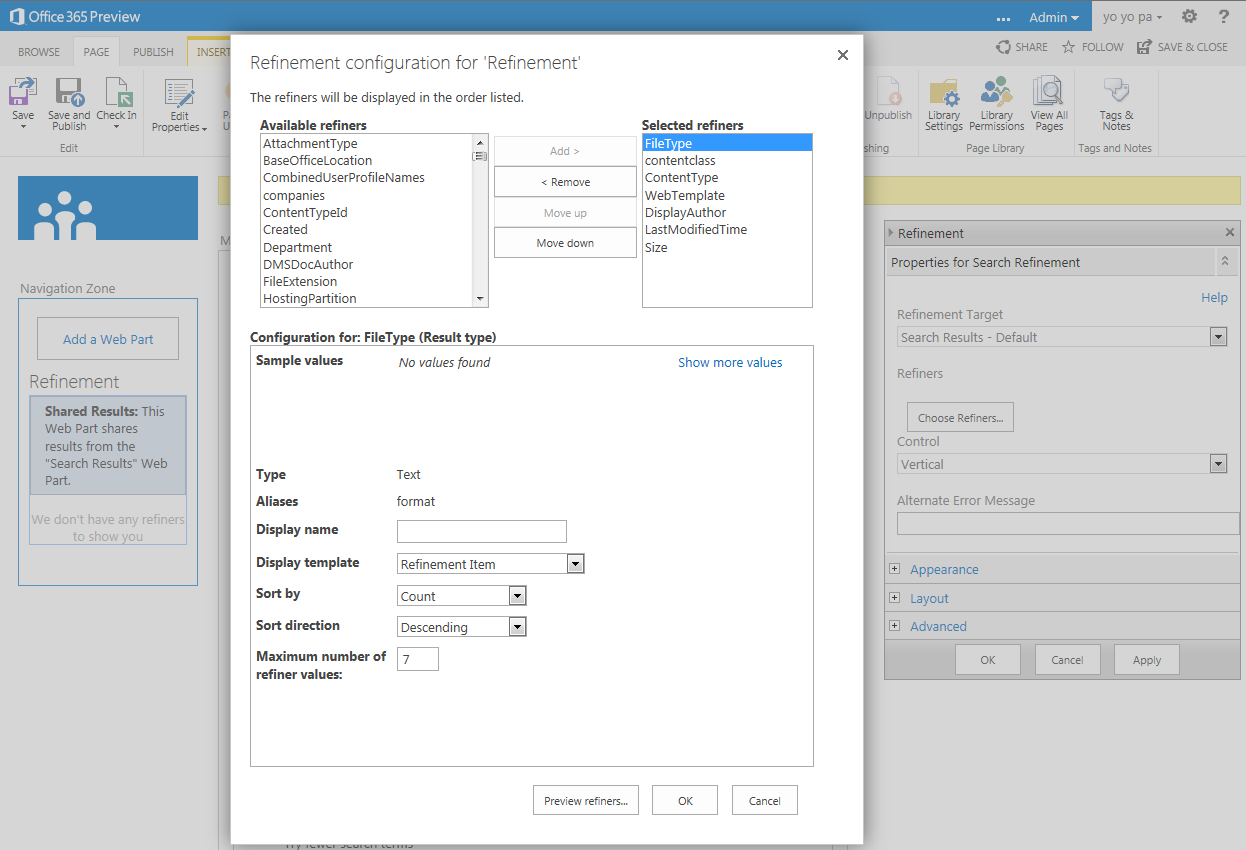
Click the button 'Choose Refiners...' to add FileExtension to the Selected refiners:


Open the Design Manager via Settings:


And look for the display template title 'Refinement Item':


These display templates come in pairs: one html file and one js file, both sharing the same title and name. You can/should only add or modify the html files; the js files are generated by SharePoint. The status of this process is shown in the column 'Status'. See screenshot for example: "Conversion successful".
Open the Filter_Default.html file in Sharepoint Designer 2013 (or make a copy):
'/_catalogs/masterpage/Display%20Templates/Filters/Filter_Default.html'

Add after row 259 the following code (marked in yellow):


This code will look for an icon file name in the image folder: '/_layouts/15/images/ic[ext].png'

Save the display template file. If you've made a copy of the original, be sure to change the title node in row 3 before saving. Go back to the Refinement web part and choose the modified display template for the FileExtension refiner.

Based on the displayed results, not all of the expected icon files are yet available, but with the help of the onError event in the IMG element there is an alternative icon found. You could add the missing icon files yourself on your own server(s), or use an image library in case of SharePoint Online.


There seems to be a native function to get the icon url: Srch.U.getIconUrlByFileExtension(). I will give it a try. Here are my findings.

To be continued.

Part 2 of Customizing the Search results UI in SharePoint 2013 Preview:
Refinement web part: show associated icons in front of the Result type refiner filters

Sources:

Saturday, August 11, 2012

Customizing the Search results UI in SharePoint 2013 Preview - Introduction

Quote Steve Peschka (MS): "SharePoint 2013 has a number of outstanding features that allow you to really use and customize search results like never before." ...
"In SharePoint 2013 – queue the music – we have display templates and what an improvement they are. No longer do you need to carry your XSLT Zen about you, now you can create your custom display code as straight HTML – yahoo!"

So let's try to find out how we are able to customize the search results user interface in the following web parts:
  1. Refinement web part: show associated icons in front of the File extension refiner filters (part 1);
  2. Refinement web part: show associated icons in front of the Result type refiner filters (part 2);
  3. Search Results web part: add tumbnail view to the Display Template of the Result Type for images (part 3);
  4. Hover Panel: add extra action to open the edit form of the item (part 4).

Preview of the customized Refinement panel:

Part 1 will explain in detail how this can be done.

Saturday, July 28, 2012

Refiners in SharePoint 2013 Preview

Here is a preview of the Refinement panel in SharePoint 2013. Custom refiners can be added through the user interface:


Display of the refiners in the search results page:


This impression is based on an Office 365 Developer Site.